Forum Replies Created
- AuthorPosts
- May 14, 2018 at 11:25 am in reply to: I installed Gravitar and can no longer edit pages from within the admin page #22608
 BoldGrid SupportKeymaster
Hi,
Thanks for posting your question regarding the Gravitar installation causing your inability to edit pages from the admin panel. I recommend restoring a backup of the website to restore this functionality. Without knowing the steps you took to replicate the issue or any other errors/details I am unable to diagnose how to fix the issue. If you have those details, please feel free to add a comment so I can review this more for you.
Best Regards,
Carlos DMay 14, 2018 at 11:16 am in reply to: How do you custom adjust placement of social media menu to header? #22610BoldGrid SupportKeymasterHi,
Thank you for posting your question regarding the position of the Social Media menu in the Swifty Inspiration. This customization would require modification to the actual theme itself, rather than a setting change in the Dashboard. For customizations like this, I recommend using Google Chrome Developer Tools to determine the code that would be needed to adjust that. You can even use Google Chrome DevTools to preview the adjustments before entering them into the Customizer.
If you provide the URL for your website I can determine this code for you, if you have the social media menu enabled/displayed.
I hope this helps!
Sincerely,
Carlos DBoldGrid SupportKeymasterHello.
Thanks for posting your question regarding how to connect your domain to the website you built with BoldGrid.
Since your domain is registered with GoDaddy, you will want to reach out to them to have them “point” your domain (using name servers/DNS) to the server where you built the BoldGrid website.
If you built the website using the BoldGrid Demo/Free Trial, then you will simply need to migrate your BoldGrid website. Then, purchase web hosting for WordPress to restore the backup to a server to host your new website. Finally, GoDaddy will need to connect the domain (to point it to the server you end up hosting the website on).
I hope this helps!
Sincerely,
Carlos D.
- This reply was modified 5 years ago by
 BoldGrid Support.
BoldGrid SupportKeymasterHello.
Thanks for posting your question regarding using your Free Connect Key in a Multi-Site WordPress environment. BoldGrid is designed around the single WordPress installation. Although it is possible to run BoldGrid using a MS WordPress installation, it is not coded/designed for this functionality. I would not recommend this, however, once you purchase or obtain a Premium BoldGrid Connect Key, then you may use that Key for any installation of WordPress during the initial setup of BoldGrid–regardless of where it is hosted. Your clients should not need that Connect Key once it’s been entered. I hope this helps!
Sincerely,
Carlos
BoldGrid SupportKeymasterHello, Andy.
Thanks for posting your question regarding your BoldGrid Connect Key and the error you are receiving. I’m sorry to see this is happening for you. I recommend reinstalling BoldGrid to ensure you are running the latest version, then retrying to enter your Connect Key. Otherwise, email support@boldgrid.com from the email address you received the Connect Key to, so they can review the issue further.
Best regards,
Carlos
April 24, 2018 at 11:35 am in reply to: Can I use BoldGrid to build my WordPess website that is being hosted by a company not on your list of recommended hosts? #22681BoldGrid SupportKeymasterHello, Andrew!
Yes, BoldGrid can be installed just like any other WordPress plugin. Therefore, as long as your host supports WordPress hosting, then you can utilize the BoldGrid interface for building your website. The system requirements are simply those that are required for WordPress to run.
I hope this helps!
Sincerely,
Carlos
BoldGrid SupportKeymasterHi!
Thanks for posting your question regarding the formats of video and playlists that BoldGrid supports. The only playlist that can be made is from the WordPress interface. You can add media you upload. However, you can typically find plugins for WordPress that support various features. As this one does relate to the building of your website content/media, you can submit suggestions on our BoldGrid Feature Request page. We welcome any feedback that you can provide.
Best Regards
Carlos
April 6, 2018 at 11:00 am in reply to: Is there a way to add the Post Builder Block function to custom post types? #22725BoldGrid SupportKeymasterHello, Will.
Thanks for posting your comment regarding adding blocks to your post for all your types of posts, including standard posts. The BoldGrid Post and Page Builder is available to use with Posts, regardless of the type of Post. There is an orange Add Block button above the Post Editor’s toolbar that will allow you to add the block to the post. If this button does not appear, I recommend ensuring that the Post and Page Builder is activated from the plugin list and also that you are running the latest updated version. I hope this helps!
Sincerely,
Carlos D
March 30, 2018 at 10:24 am in reply to: My user password reset takes you to a screen that requires your password to reset your password. Weirdest part is that is the only field to fill out. #22768BoldGrid SupportKeymasterHello.
Thanks for posting your question regarding the password reset functionality behaving unexpectedly. I’m sorry to see you are experiencing issues with that. I was unable to replicate the issue you are describing, using the latest version of WordPress and BoldGrid. The Lost your password? link, navigates to a page where I entered my email address (or username) and then submit that form. Once I received the email for that user, I clicked on the password reset link and was navigated to the “Reset Password” page. This page displays the instructions to Enter your new password below.
I did see that in my browser, it auto-filled/auto-generated a password and New password is the only field to enter data into.
If you are experiencing persistent issues with the password reset link, please respond back to advise on the steps you are taking and what version of BoldGrid/WordPress you are running. Again, I was testing with the most up-to-date version of each and am unable to replicate any issues with resetting the password.
I hope this helps!
Sincerely,
Carlos D
BoldGrid SupportKeymasterHello.
Thanks for posting your question about a Widget not properly displaying on your website. I’m sorry to see that you are experiencing issues with that. I am not sure what code you are using. Can you please provide additional details, including the steps you are taking to replicate the issue? We can then review this further to possibly diagnose the issue and find a resolution for you.
Best Regards,
Carlos
BoldGrid SupportKeymasterHello Cody.
Thanks for posting your question regarding the watermarks persisting on your images after having purchased them. I’m sorry to see this is happening. I would suggest removing the images and replacing them with the size image(s) that you purchased. If you’re still experiencing issues after that, I recommend you make a backup of your website then update any BoldGrid plugins/themes as well as your WordPress core installation. These updates can help correct bugs and plug security vulnerabilities.
If you continue to experience issues, please reply back with the exact steps you are taking to replicate the issue you are reporting. Also, be sure to include the details of your WordPress and BoldGrid plugins/themes/installation for us to be able to provide more assistance.
Sincerely,
Carlos
March 19, 2018 at 4:28 pm in reply to: Where do I find the file to edit to remove the ”you may use these html tags…” from a child theme for Wedge? #22838BoldGrid SupportKeymasterHello Erik!
Thanks for posting your comment regarding removing the HTML markup alert from below the comments field.
First, I’d recommend creating a backup of your website, before implementing my recommendation below. After making that backup, navigate to Customize > CSS/HTML Editor. Under the Theme Files section, navigate to the file/path here:
inc/boldgrid-theme-framework/includes/class-boldgrid-framework-comments.php
Once that file loads in the editor, scroll down (to approximately line 138). Remove the following code from this file:
‘comment_notes_after’ => ‘<p class=”form-allowed-tags”>’ . __( ‘You may use these <abbr title=”HyperText Markup Language”>HTML</abbr> tags and attributes:’, ‘bgtfw’ ) . ‘</p><div class=”alert alert-info”>’ . allowed_tags() . ‘</div>’,
Finally, click the Update File button at the bottom of the page.
This removes the notes after the comment field, as you have described. If for some reason, this causes unwanted behavior, you can always use the backup you created (prior to making these changes), to restore the file. I hope this helps!
Sincerely,
Carlos D
BoldGrid SupportKeymasterHello!
Thanks for posting your question about your form’s submissions. Locating these depends on the plugin you are using to build your forms.
For instance, if you are using Ninja Forms, you can access the submissions by following these steps:
- Log into your BoldGrid Administrative Dashboard.
- Navigate to Forms > All Forms.
- Hover over the form you would like to review the submission(s) for.
- Click on View Submissions.
Alternatively, if you are using WPForms, you will need the Pro version to be able to view the submissions in the Administrative Dashboard area. However, using the free version of WPForms, you will need to configure the Notification Settings, for each form.
If you are using another plugin for creating your forms, you may need to refer to their documentation to locate the submissions to review. I hope this helps!
Sincerely,
Carlos D.
BoldGrid SupportKeymasterHi Leroy,
Thanks for posting your question regarding the modifications to your buttons on your homepage and the text size. I’m sorry to see you are experiencing issues with editing that.
I’m not sure of the method by which you have created those buttons.
- Have you tried using a Widget in that page?
- How are you modifying this element in your site?
- What versions of BoldGrid (all plugins) are you using?
- What version of WordPress are you using?
- What are the steps you are taking to replicate the behavior you are trying to correct?
I am looking forward to those details to be able to assist you further.
Sincerely,
Carlos D
BoldGrid SupportKeymasterHello Katie.
Thanks for posting your question about adjusting the line spacing in the header font, as it appears on Tablet/Mobile devices. You can customize the CSS for that particular item, by using the CSS Editor in BoldGrid’s Customizer. I was able to pull up your website and I believe the following code should handle adjusting the spacing for tablet/mobile devices:
@media (max-width:991px) {
entry-title > h1 {
line-height: 1.2;
}
}You can simply copy/paste that code into the CSS Editor as described in the article (linked above). I hope this helps!
Sincerely,
Carlos D
BoldGrid SupportKeymasterHello.
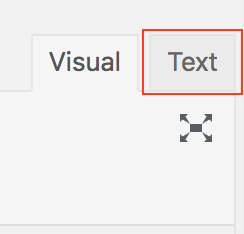
Thanks for posting your question regarding the inability to receive notifications from your Ninja Form submissions. I’m sorry to see you are experiencing issues with this. I recommend reviewing the page that you have the contact form displayed on. In the Page editor, if you click on the “text” editor tab, then you can review the page for the Ninja Forms code (looks similar to: ‘[ninja_forms id=1]‘). Once you have found the correct ID for the form on that page, you can navigate back to the Ninja Forms to review the email settings for that specific form, since each form has it’s own email settings.
If your email settings are correct and you have accurately checked that specific form, then I recommend you work with your web host to review the server’s Exim/email logs. There may be tweaks or setup needed to be completed within their interface in order for your email to work on your domain/website cohesively. I hope this helps!
Sincerely,
Carlos D
March 19, 2018 at 11:32 am in reply to: Can BoldGrid implement a specific javascript web page? #22832BoldGrid SupportKeymasterHello Sarah,
Thanks for posting your question regarding BoldGrid’s ability to utilize JavaScript for displaying custom results for products based on location. Although BoldGrid does not handle the products and location based search results, you can always utilize other WordPress plugins, like WooCommerce, for instance. I recommend reviewing the various E-commerce plugins for WordPress that you can then add to your website built with BoldGrid.
I hope this helps!
Sincerely,
Carlos D
BoldGrid SupportKeymasterHello.
Thanks for posting your question regarding disabling the menu from automatically adding newly published pages. To do this, you will need to navigate to Customize > Menus, then click on the menu that is adding the new pages automatically. Scroll down to the Menu Options section. You should see the checkbox for “Automatically add new top-level pages to this menu“, uncheck that box to disable this behavior.
Best Regards,
Carlos D
March 9, 2018 at 2:51 pm in reply to: I cannot delete a block of color in BoldGrid in my Site Logo area. #22869BoldGrid SupportKeymasterHello.
Thanks for posting your question regarding changing the color of your Site Logo section. The colors can be changed through the default Color Selector in the Customizer. If you click on one of the colors, the section(s) that the color is assigned to will briefly flash, to make you aware of what will change.
If the change can not be made within the Color Selector, the only other option would be to create a child theme and manually modify the CSS for that child theme. Note: the guide linked for modifying the CSS instructs to enter the modified CSS into the CSS editor, however, you should add that code to the child theme in this case. The child theme is important so that your customizations are not overwritten when the (parent) theme has to be updated. Although this is an advanced topic, the instructions should guide you pretty well. However, actually coding/developing that theme may require some more advanced knowledge of CSS. I hope this helps though!
Sincerely,
Carlos D
BoldGrid SupportKeymasterHello Craig,
Thanks for posting your question regarding the column alignment on your website. I’m sorry to see this is occurring. I noticed the mis-alignment you mentioned on that first column. Pulling up the content in the Google Chrome Developer Tool, it appears that the column is set to align: top rather than “center” as the rest of them are. You should be able to click on the column to modify the vertical alignment. I hope this helps!
Sincerely,
Carlos
BoldGrid SupportKeymasterHello Greg,
Thanks for posting your question regarding the location of existing website pages to edit. I’m sorry to see that you are experiencing an issue with updating the content on your website’s pages.
The Pages are maintained in the same location inside WordPress, with or without BoldGrid installed. You may navigate to them by clicking on the Pages option from the Administrative Dashboard.
If you are not seeing the pages listed, then there may be an underlying issue that is causing them to not load properly. I recommend disabling non-BoldGrid plugins that may be used to modify the pages/posts or editor in general. If you disable the plugins one-by-one, you may be able to identify if one is causing the conflict (i.e. you disable a plugin and the site loads your pages for editing).
You can also attempt to restore the website from a known working backup.
Lastly, I recommend ensuring all your plugins, themes, and WordPress are updated to the last versions.
If those recommendations do not resolve the issue, to diagnose the issue, we would need the following details to replicate and further trouble shoot:
- The version of (all) BoldGrid plugins you have installed.
- The version of WordPress installed.
- The version of the theme you are using.
- The error message(s), if any, that are appearing instead of your pages.
- The exact steps you are taking to replicate the unexpected behavior.
I look forward to your response to be able to assist you further. I hope this helps!
Sincerely,
Carlos D
BoldGrid SupportKeymasterHey Mike!
We do not have an instructional guide on using WP-CLI to print out the contents of your pages/posts. That command would simply be run using an SSH connection from the directory that WordPress is installed in (if WP-CLI is already installed). However, this depends on where you are hosting the website, there may be limitations on access as well. Depending on who your host is, I may be able to advise further, so let me know!
Best Regards,
Carlos
BoldGrid SupportKeymasterHello Mike.
Thanks for posting your question regarding finding the content of your website, after it’s been quarantined. I’m sorry to see that your website was hacked. The pages and posts are not stored in the files that were quarantined. You can review your website’s database for the posts/pages content you are looking for. If you have WP-CLI installed, you can simply run the following command to list your content:
wp post list –post_type=page –field=post_content
I hope this helps!
Sincerely,
Carlos
March 2, 2018 at 10:50 am in reply to: My site is published but when I go to edit my pages, there’s literally no content. #22926BoldGrid SupportKeymasterHi.
Thanks for posting your question regarding the issues you are experiencing. I recommend disabling any other (non-BoldGrid) plugins that you may have installed, especially those that are used for editing Pages/Posts. They may be conflicting with BoldGrid’s functionality.
Additionally, I recommend troubleshooting the server you have installed BoldGrid on. Specifically ModSecurity may be blocking requests, depending on the rules you have enabled. You can check your Apache error logs and disable/enable ModSecurity -temporarily- to determine if that is the reason for the missing buttons. I hope this helps!
Sincerely,
Carlos
March 2, 2018 at 10:43 am in reply to: Trying to change menu info, but the save and publish button is missing. ! #22898BoldGrid SupportKeymasterHi Loren.
Thanks for posting your question regarding the Save and Publish button missing. I recommend disabling any other plugins that you may have installed, especially those that are used for editing Pages/Posts. They may be conflicting with BoldGrid’s functionality.
Additionally, I recommend troubleshooting the server you have installed BoldGrid on. Specifically ModSecurity may be blocking requests, depending on the rules you have enabled. You can check your Apache error logs and disable/enable ModSecurity -temporarily- to determine if that is the reason for the missing buttons. I hope this helps!
Sincerely,
Carlos
BoldGrid SupportKeymasterHello Kathy.
Thanks for posting your question regarding the style.css file missing error. I recommend that you reinstall WordPress and the BoldGrid plugin. The files needed should be included in both those installations. I hope this helps!
Sincerely,
Carlos
BoldGrid SupportKeymasterHello Vita.
Thanks for posting your question about adding HTML/CSS to create a bar at the top of your website. You can accomplish this by adding your code through the Customizer. I hope this helps!
Sincerely,
Carlos
BoldGrid SupportKeymasterHi Larry!
Thanks for posting your question regarding the WP icon appearing in place of your menu’s text. I’m sorry to see that you are experiencing difficulty with this. I have reviewed your site and it appears there is a plugin that is manipulating the way menus are displayed. BoldGrid, by default, will not use icons as menu items. Are you able to provide some more details in regards to how you developed/created those menus? With those details, I may be able to further assist you.
Best Regards,
Carlos D
BoldGrid SupportKeymasterHello Lee,
Thanks for posting your question about moving and making a backup of the Staging site only. Unfortunately, the capabilities to do this do not exist. You would need to deploy staging, before you would be able to make a backup of that version of the site to move it.
If this is a feature you would like to request you can submit feedback directly to our developers.
Best Regards,
Carlos D.
BoldGrid SupportKeymasterHello Vita,
Thanks for posting your question about syncing the color scheme through out your website. The color scheme should remain the same through out the website. I visited your website from my computer and iPhone. They both appeared to display similar colors. It’s possible you may be seeing a cached version of your page. I recommend using a Private Browsing Session to check on changes/updates to your website. This allows you to view the website (with a new/empty cache) without having to delete your browser’s cache. If you are still experiencing issues, would you be able to provide screenshots, a list of the devices you are replicating this issue on, as well as, the exact links you are accessing.
Best Regards,
Carlos D
BoldGrid SupportKeymasterHi candymaker.
I’m sorry to see that you were experiencing issues with designing your website. However, at this time, it appears that the issues have been resolved.

No duplicate title or site description in your header.
No WordPress Attribution present in your Footer.
Are you still experiencing problems?
BoldGrid SupportKeymasterHello Alex
The issue appears to be related to additional custom coded CSS on your website. This is not the expected behavior of the theme. In our multiple instances for testing this, we are unable to replicate, until we add the code you have mentioned in your previous comments.
I recommend removing the custom CSS code that you have added, this will correct the issue caused by that code.
Otherwise, I recommend you contact whomever made those CSS modifications. They may need to review the code to ensure that their changes were not overwritten by an update to the theme. To prevent this from happening they would need to create a Child Theme and customize that with their code. This will prevent their code from being overwritten in future updates to the theme.
I hope this helps.
Sincerely,
Carlos D
BoldGrid SupportKeymasterHello.
Thanks for posting your question. I’m sorry to see that your backup is not restoring properly on the new server. I’m unable to provide a diagnosis for the error you are receiving. What version of BoldGrid Backup Plugin are you using to backup and restore? What versions of WordPress are you using between the two systems? Have you tried to make another backup to attempt to restore from a new file?
Please let us know the additional details, so we can assist you more.
Sincerely,
Carlos D
BoldGrid SupportKeymasterHello.
Thanks for posting your question regarding how to copy Pages.
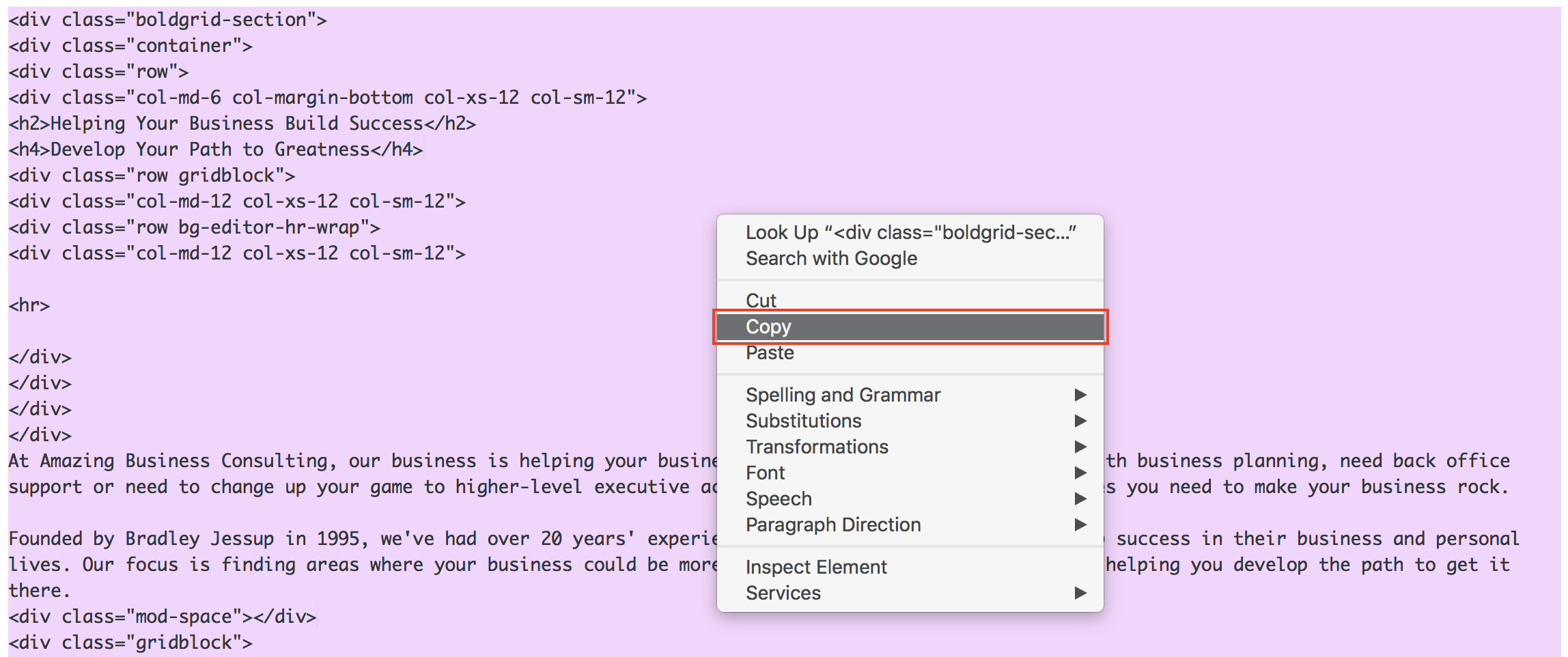
You can simply copy and paste the code from the Page Editor’s Text tab. The instructions below should assist you with that process.
- Log into BoldGrid.
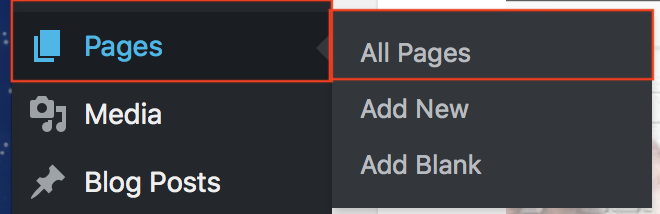
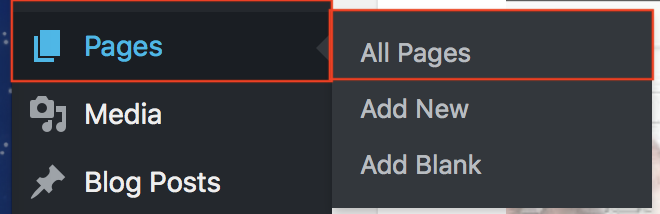
- Hover over the Pages menu option from the left-side, then select All Pages.

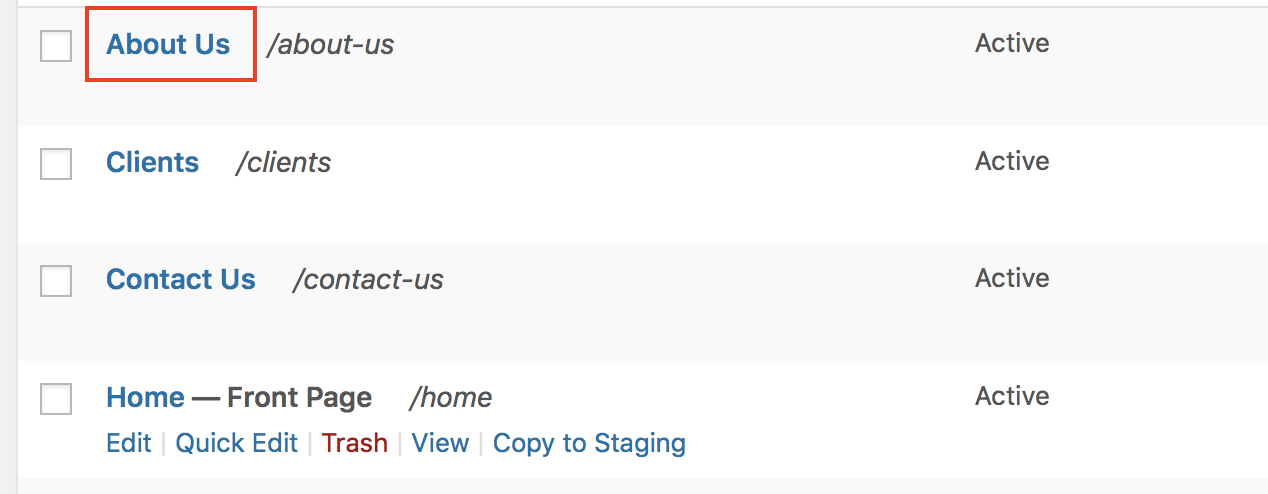
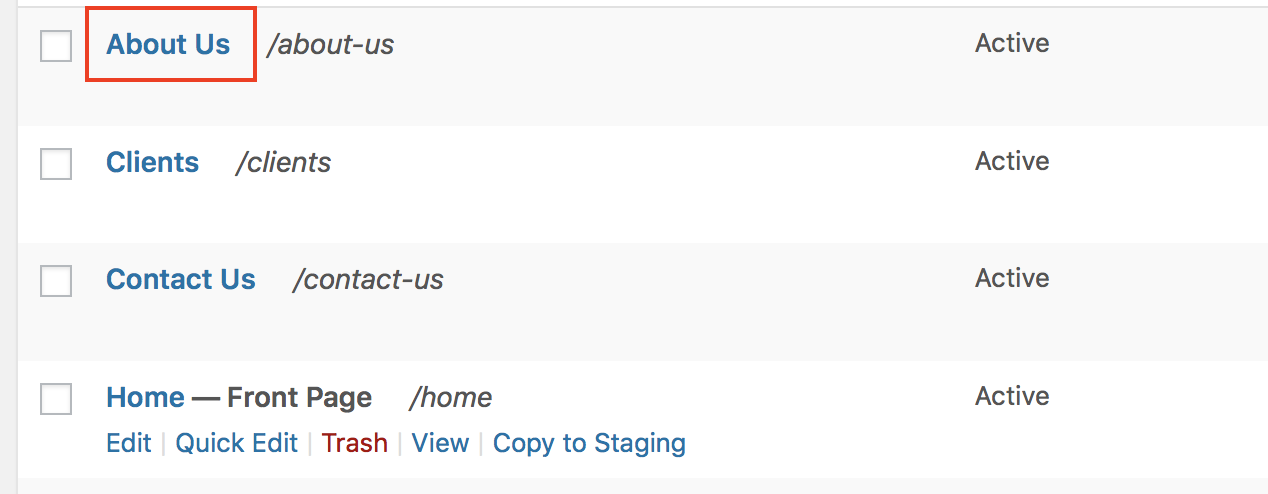
- Select the page you would like to copy, from the list of Pages you have created.

- Once the Page Editor loads, click on the Text tab to switch from Visual to Text editing.
- Copy the all the code/text in this window. (You can press Ctrl + A to highlight all the text, once you are inside the text box, then press Ctrl + C to copy the highlighted text.).

- Now, from the left-side menu, hover over Pages and select Add Blank.

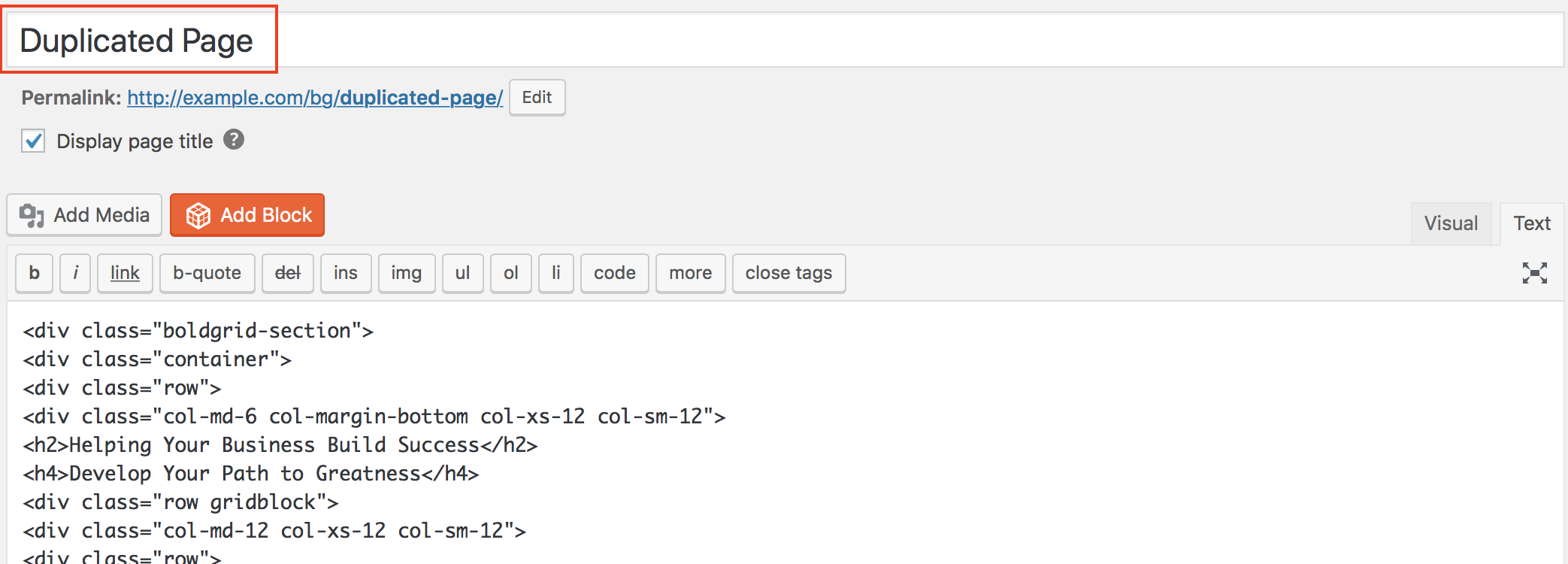
- Once the Page Editor loads, click on the Text tab, if it is not already selected.
- Paste the code you just copied into this new page and give it a title.

- Click on the Publish button to save the new/duplicate page.

I hope this helps!
Sincerely,
Carlos D
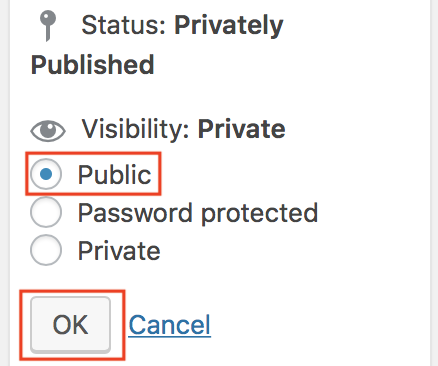
February 16, 2018 at 10:38 am in reply to: How to change a page’s “publish” screen to “privately published/ private” and then “publish/ public” a few days later? #22969BoldGrid SupportKeymasterHi Gerry,
Thanks for posting your question regarding changing a Page’s visibility to privately published to publicly published. You may accomplish this by using the Publish Settings column.
- Log into your BoldGrid website.
- Hover over Pages, then select All Pages, from the left-side menu.
- On the next screen, with all your Pages listed, select the Page you would like to change the viability for.
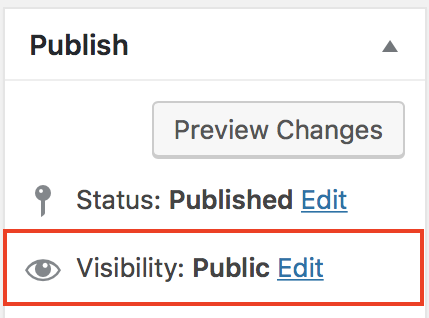
- Once the editor opens up, to the right, you will see the Publish settings column. Next to the Visibility option, click the Edit link.

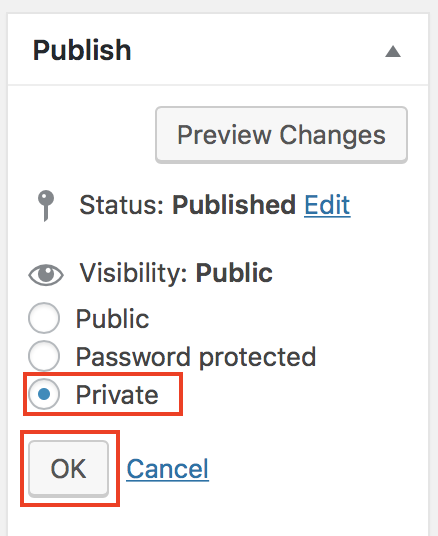
- Select Private, then click on the OK button.
Then the page will be published privately. Once you are ready to publish the page publicly, the process is the same.
- Open the Page in the Page Editor (as described above).
- From the Publish settings column, select the Edit link next to Visibility option. Then select Public and click on the OK button.
I hope this helps!
Sincerely,
Carlos D
BoldGrid SupportKeymasterHello Sonya,
Thanks for posting your questions regarding updates to the Diced theme. Theoretically, the themes will retain your customization. However, I always recommend making a backup of your website prior to making updates to it. This will create a restore point for you, in case the updates cause unexpected behavior.
Updating the theme may not stop the message regarding outdated WooCommerce template files from displaying. Rather, you need to make a backup and then proceed to update the templates that WooCommerce is advising. I hope this helps!
Sincerely,
Carlos D
February 9, 2018 at 11:38 am in reply to: Pavilion Theme’s WooCommerce templates are out of date. Will you be updating them? #23017BoldGrid SupportKeymasterHello Sheri,
Thanks for posting your question regarding notifications indicating WooCommerce templates are out of date. If you are using the default Pavilion theme by BoldGrid, you can simply proceed with backing up your website and then updating the templates by navigating to WooCommerce > System Status. If you are using a Child Theme and making customizations to the files themselves, then there may be a bit more involved in the process (in order to preserve your custom code). Either way, the WooCommerce documentation provides details on how to proceed with this particular kind of update to the theme files.
I strongly recommend you create a backup before running updates like this. A backup will create a working/restorable point for your website, in case the updates cause unexpected behavior.
BoldGrid themes are regularly updated, however, I don’t believe that these are the updates that WooCommerce is indicating. According to WooCommerce, all themes (even those that do not claim to be WooCommerce “ready”) will work with WooCommerce. I hope this helps!
Sincerely,
Carlos D
BoldGrid SupportKeymasterIt seems like you were able to resolve the issue you were reporting. Are you still experiencing issues after updating WordPress and BoldGrid?
BoldGrid SupportKeymasterHi Alex,
It looks like the editor is not big enough to display the full width of the page and the full width of the page is properly displayed when loading the actual page in your browser.
Best Regards,
Carlos D
BoldGrid SupportKeymasterI recommend working with the System Administrator for your server to temporarily disable ModSecurity, if you have that running on your server for Apache. If the image is uploaded without the error with ModSecurity disabled, I recommend reviewing the logs and disabling the rule that is being triggered and blocking the upload. I hope this helps.
Sincerely,
Carlos D
- This reply was modified 5 years ago by
- AuthorPosts