Forum Replies Created
- AuthorPosts
 Marko VasiljevicKeymaster
Hello Pernando,
We received your email and replied to it. Please follow the instructions provided and continue the correspondence via the support channel so we can avoid duplicating the answers.
Thanks!Marko VasiljevicKeymasterHello Dominique,
Thank you for the information and the Dev team is doing the best it can.
Please understand that the issue is related to specific themes/plugins.
Thanks!Marko VasiljevicKeymasterHello James,
I am sorry about the issue you are experiencing when upgrading the W3TC and I am happy to assist you with this.
What you can do is to make a backup of wp-content/w3tc-config/master.php and completely remove and re-install W3 Total Cache following the instructions below:
1. Purge Cache
2. Deactivate and Delete Plugin
3. Check .htaccess File (make a backup)
W3TC will create many directives in the .htaccess file to control the caching behavior. Each section will start and end with comments like “#BEGIN W3TC Page Cache core” and “#END W3TC Page Cache core”.
Ensure that no residual entries are leftover in your .htaccess file after deleting the plugin.
4. Delete wp-content files and folders
– cache folder
– w3tc-config folder
– object-cache.php (if exists)
– advanced-cache.php (if exists)
– dbcache.php (if exists)
– upgrade folder
– delete w3-total-cache folder in wp-content/plugins/ (if exists)
5. Delete Cached Files from CDN (if using CDN)
Besides deleting all the relevant files, if you use CDN then ensure to purge the cached content from your CDN. This is necessary when you enabled minify option in W3TC settings. You should delete the minified and combined scripts and CSS files from your CDN server to avoid the site breaking on the browser.
6. Go to your wp dashboard and re-install W3 Total Cache
7. copy and paste the backup of master.php to wp-content/w3tc-config/Alternatively, you can try upgrading the plugin to 2.1.1, download the latest version from here and copy the \w3-total-cache\lib\Minify\Minify\HTMLTidy.php from the downloaded folder into /home/xxxxxx/public_html/wp-content/plugins/w3-total-cache/lib/Minify/Minify/
I hope this helps!
Thanks!Marko VasiljevicKeymasterHello Lian,
Thank you for the information.
Glad to know the issue is resolved!
Thanks!Marko VasiljevicKeymasterHello Dominique
I am sorry about the issue you are experiencing and I am happy to assist you with this.
We have an open issue in our Github Repository, regarding this problem. Please make sure to track the progress of the issue regularly and feel free to commend on it and share more info.
Thanks!Marko VasiljevicKeymasterHello
Thank you for your inquiry and I am happy to assist you with this.
This means that the memory_limit of 128M is being exhausted. There is no particular reason why this happens with the role other than Administrator.
What you should do is to increase the memory limit
To increase the PHP memory limit setting, edit your PHP.ini file. Increase the default value (example: Maximum amount of memory a script may consume = 128MB) of the PHP memory limit line in php.ini.memory_limit = 256M
Alternatively, you can edit your .htaccess file (Not recommended see: Apache Performance: Disable .htaccess)php_value memory_limit 256M
If you don’t have access to these files or lack the experience to make this change, you can contact your web host and ask them to increase your PHP memory limit.Marko VasiljevicKeymasterHello Lian,
I am sorry about the issue you are experiencing and I am happy to assist you with this.
I’ve checked your website and I am not seeing any issues, or better said, I don’t know how it supposes to look like.
Can you please disable the settings one by one in Performance>general settings, save the settings and purge the cache after each setting is disabled, and see which one might be causing the issue?
If for example minify is causing the issue, re-enable minify, and disable the settings in Performance>minify one by one (HTML minify, JS minify, CSS minify) and see which one might be causing the issue.
Make sure to save all settings and purge the cache after each option is disabled.
Thanks!Marko VasiljevicKeymasterHello Mike.
Looking at your website I see
Object Caching 419/23626 objects using Memcached
Page Caching using Memcached
Content Delivery Network via Amazon Web Services: S3: mvpproshop-media.s3.amazonaws.com
Database Caching 2/4883 queries in 14.265 seconds using Memcached (Request-wide modification query)
Served from: localhost @ 2021-03-12 10:06:23 by W3 Total Cache
Have you switched to a regular Memcached client and not autodiscovery?
If you check this article you need to Install the Memcached Client
That requires a PHP module amazon-elasticache-cluster-client.so
https://docs.aws.amazon.com/AmazonElastiCache/latest/mem-ug/AutoDiscovery.HowAutoDiscoveryWorks.html
There are the module for:
https://elasticache-downloads.s3.amazonaws.com/ClusterClient/PHP-7.3/latest-64bit
https://elasticache-downloads.s3.amazonaws.com/ClusterClient/PHP-7.2/latest-64bit
https://elasticache-downloads.s3.amazonaws.com/ClusterClient/PHP-7.0/latest-64bit
https://elasticache-downloads.s3.amazonaws.com/ClusterClient/PHP-5.6/latest-64bit
https://elasticache-downloads.s3.amazonaws.com/ClusterClient/PHP-5.5/latest-64bit
https://elasticache-downloads.s3.amazonaws.com/ClusterClient/PHP-5.4/latest-64bit
https://elasticache-downloads.s3.amazonaws.com/ClusterClient/PHP-5.3/latest-64bit
5:15
No 7.4 or 8.0 yet. No 7.1.Thanks!
Marko VasiljevicKeymasterHello Mike,
Thank you for the information.
Does this always happen when logged in or have you checked when logged out from the wp-admin?
Thanks!
Marko VasiljevicKeymasterHello Anna,
Thank you for your inquiry and I am happy to assist you with this.
Ah yes, the PHPSESSID. This makes caching a lot harder. Make sure that caching is disabled to logged-in users in Performance>Page Cache “Don’t cache pages for logged in users”
You can also add PHPSESSID in Performance>Page Cache>Advanced>Reject Cookies filed, save all settings and purge the cache.
Thanks!
March 11, 2021 at 12:06 pm in reply to: Do I have to flush the cache every time I update WordPress? #34887Marko VasiljevicKeymasterHello Avi,
As I already replied via the support channel, this depends on what changes you are making in the backend. When installing new plugins or removing the unneeded plugins it’s recommended to purge the cache.
However, if you are referring to updating the posts or creating new articles then no, there is no need to purge the cache manually as it’s being handled by the Purge policy in Performance>Page Cache so the cache will be cleared automatically.
Thanks!
Marko VasiljevicKeymasterHello Mike,
Thank you for your inquiry and I am happy to assist you with this.
There is a possible issue in /wp-content/plugins/w3-total-cache/DbCache_WpdbInjection_QueryCaching.php lines 742-744.
Change the double-quotes to single:$strings[] = sprintf( "%s%d", str_pad( 'Total queries: ', 20 ), $this->query_total ); $strings[] = sprintf( "%s%d", str_pad( 'Cached queries: ', 20 ), $this->query_hits ); $strings[] = sprintf( "%s%.4f", str_pad( 'Total query time: ', 20 ), $this->time_total );to
$strings[] = sprintf( '%s%d', str_pad( 'Total queries: ', 20 ), $this->query_total );
$strings[] = sprintf( '%s%d', str_pad( 'Cached queries: ', 20 ), $this->query_hits );
$strings[] = sprintf( '%s%.4f', str_pad( 'Total query time: ', 20 ), $this->time_total );
Try this out and let me know if this helps!
Thanks!
Marko VasiljevicKeymasterHello Tim,
Thank you for your questions and I am happy to answer.
- We are not offering any discount for a single license at the moment. If you are interested in a multiple license activation please drop us a note via the plugin in Pefrormance>Support.
- Without looking at the logs I cannot share any specifics on why this may be occurring. Make sure that the Object Cache and DB cache are not enabled, especially if caching to disk and on the shared server. If those options are enabled, disable them, save all settings and purge the cache and see if the issue persists.
If the DB is the bottleneck of your website performance, I would recommend upgrading the hosting plan and usin memory-based caching for DB like Redis or Memcached.
Thanks!
Marko VasiljevicKeymasterHello Kevin,
Thank you for your inquiry and I am happy to assist you with this.
Thank you for your support and as I can see in the test, the results are amazing. This chain response time is not incrementing, so it’s not 2.5 s but 650ms as you can see in the waterfall chart.
So there is nothing to worry about in this case as the time to interactive is 0.4 s
Thanks!
Marko VasiljevicKeymasterHello Mark,
As you already stated those are external files and no plugins can handle those files because they are coming from an external server.
If Minify is set to Auto you may try to Include external files/libraries: option in Performance>Minify>Advanced and enable the option “Use Regular Expressions for file name matching”
The best solution is to host those files on your server.
Thanks!
Marko VasiljevicKeymasterHello Howard,
We’ve received both of your emails via the support channel and replied. Please continue the correspondence there so we can avoid duplicating the answers.
Thanks!
Marko VasiljevicKeymasterHello,
I am sorry about the issue you are experiencing and I am happy to assist you with this.
Can you please make sure that all files are completely removed before reinstalling the plugin?
1. Purge Cache
2. Deactivate and Delete Plugin
3. Check .htaccess File (make backup)
W3TC will create many directives in .htaccess file to control the caching behavior. Each section will start and end with comments like "#BEGIN W3TC Page Cache core" and "#END W3TC Page Cache core".
Ensure that no residual entries are left over in your .htaccess file after deleting the plugin.
4. Delete wp-content files and folders
- cache folder
- w3tc-config folder
- object-cache.php (if exists)
- advanced-cache.php (if exists)
- dbcache.php (if exists)
- upgrade folder
- delete w3-total-cache folder in wp-content (if exists)
5. Delete Cached Files from CDN (if using CDN)
Besides deleting all the relevant files, if you use CDN then ensure to purge the cached content from your CDN. This is necessary when you enabled minify option in W3TC settings. You should delete the minified and combined scripts and CSS files from your CDN server to avoid the site breaking on the browser.
6. Go to your wp dashboard and re-install W3 Total Cache
Thanks!
March 8, 2021 at 9:06 am in reply to: When using plugin w3 total cache error logging went through the roof. #34678Marko VasiljevicKeymasterHello Bart,
I am sorry about the issue you are experiencing and I am happy to assist you with this.
Without looking into the logs there is no way we can be 100% sure what might be causing this. Most likely is a memory issue on the server. So make sure that you are not using Database Cache and Object Cache if on a shared server and caching to disk. Also, check the size of wp-content/cache/ folder
There is also a possibility of a conflict with some other plugin so you may want to check that by disabling other plugins while W3TC is enabled.
Thanks!
Marko VasiljevicKeymasterHello Eugene,
MaxCDN is now Stackpath and it’s not ours, it’s something we recommend as a CDN provider. It is not recommended to use more than one CDN solution. Simply to avoid any issues. however, since these are two different types of CDN, you can try serving the static assets from the CDN by using Stackpath.
Please check this article for more details.
Thanks!
Marko VasiljevicKeymasterHello Chris,
I’ve replied to the email. Please continue correspondence there and follow the instructions so we can avoid sharing any private info on a public forum.
Thanks!
Marko VasiljevicKeymasterHello Chris,
I can see that the license is activated on your website.
Remove the license key from Performance>General settings, Licensing sub-box, license field, and save all settings. Re-enter the license, verify the license with the “verify license button” and save all settings.
W3 Total Cache Pro should be active after these steps!
Thanks!
Marko VasiljevicKeymasterHello Mike,
There is an example config wp-content/plugins/w3-total-cache/ini/dbcluster-config-sample.php
Once edited create /wp-content/db-cluster-config.php and paste the config there. It should work after these steps.
Thanks!
Marko VasiljevicKeymasterHello Eugene.
Thank you for your inquiry and I am happy to assist you with this.
As I can see, the WPX CDN needs to be enabled in the WPX Control Panel. AS this is being done outside of W3TC there is no need to do anything in W3 Total Cache.
Thanks!
Marko VasiljevicKeymasterHello Mike,
With W3TC PRO you may use a cluster of MySQL servers when a single MySQL instance can’t handle all your traffic.Thanks!
Marko VasiljevicKeymasterHello Ketil,
W3 Total Cache Pro licenses are valid on a per-install basis, meaning you need one for every WordPress instance you run. If you have three separate websites, you will need three licenses in total—one for each site. If you have five sites in a WordPress multisite instance, you need just one license for all five sites.
Thanks!Marko VasiljevicKeymasterHello,
I am sorry about the issue you are experiencing with the images and I am happy to assist you with this.
Can you please disable the settings one by one in Performance>general settings, save the settings and purge the cache after each setting is disabled and see which one might be causing the issue?
Thanks!
Marko VasiljevicKeymasterHello Mike,
Using more than one plugin for this is not recommended.
If you are planning to use the mentioned plugin you should disable W3TC db caching as both plugins are using the same drop-in – db.php.Thanks!
Marko VasiljevicKeymasterHello Kiem,
Please make sure to check this link for assistance with this and also check the Performance>Install page for more details.
Thanks!March 1, 2021 at 8:42 am in reply to: W3 Total Cache was fine – and now it randomly crashed my site #34417Marko VasiljevicKeymasterHello Mark,
I am sorry about the issue you are experiencing and I am happy to assist you with this.
WE’ve received your email via the support channel and replied to it so please continue the correspondence there so we can avoid duplicating the answers.
Thanks!Marko VasiljevicKeymasterHello Aninda,
Thank you for your inquiry and I am happy to assist you with this.
Are you trying to setup FSD CDN or just serving the static assets from the AWS?
Can you please share the screenshot of the settings in Performance>CDN>Configuration: Objects?
Thanks!Marko VasiljevicKeymasterHello Kiem,
I am sorry about the issue you are experiencing and I am happy to assist you with this.
Can you please share the screenshot or more detailed information about where you are seeing the error message?
A screenshot would be great.
Thanks!February 25, 2021 at 4:45 am in reply to: [Resolved] Recurring Mixed Content with W3 Total Cache #34307Marko VasiljevicKeymasterHello Michael,
I am sorry about the issue you are experiencing with mixed content and I am happy to assist you with this.
I would recommend completely removing and re-installing W3 Total Cache, including all residual files:
1. Purge Cache
2. Deactivate and Delete Plugin
3. Check .htaccess File (make a backup)
W3TC will create many directives in the .htaccess file to control the caching behavior. Each section will start and end with comments like “#BEGIN W3TC Page Cache core” and “#END W3TC Page Cache core”.
Ensure that no residual entries are leftover in your .htaccess file after deleting the plugin.
4. Delete wp-content files and folders
– cache folder
– w3tc-config folder
– object-cache.php (if exists)
– advanced-cache.php (if exists)
– dbcache.php (if exists)
– upgrade folder
– delete w3-total-cache folder in wp-content (if exists)
5. Delete Cached Files from CDN (if using CDN)
Besides deleting all the relevant files, if you use CDN then ensure to purge the cached content from your CDN. This is necessary when you enabled minify option in W3TC settings. You should delete the minified and combined scripts and CSS files from your CDN server to avoid the site breaking on the browser.
6. Go to your wp dashboard and re-install W3 Total CacheOnce enabled, Enable the settings one by one, save all settings and purge the cache after each setting is enabled, and make sure to check your website.
Also in Page Cache, make sure that the option “Cache SSL (HTTPS) requests” is enabled
I hope this helps!February 25, 2021 at 4:38 am in reply to: [Resolved] activation W3 caused site error, no access #34305Marko VasiljevicKeymasterHello Mitchell,
Thank you for the information.
I’ve checked your website and as I can see the website is accessible as well as the https://custom-tiles.com/wp-admin/ and W3 Total Cache is active on your website.<!-- Performance optimized by W3 Total Cache. Learn more: https://www.boldgrid.com/w3-total-cache/ Page Caching using disk: enhanced Content Delivery Network via N/A Lazy Loading Minified using disk Served from: custom-tiles.com @ 2021-02-24 19:55:39 by W3 Total Cache -->Can you please confirm that you are still experiencing the issue?
Thanks!February 24, 2021 at 12:27 pm in reply to: [Resolved] activation W3 caused site error, no access #34275Marko VasiljevicKeymasterHello Mitchell,
The provided steps need to be taken first in order to access your dashboard. So to access your dashboard you need to manually delete those files from the server following the steps provided.
Once those files are deleted, you can then access the dashboard and re-install W3TC and making sure that OC and DB Cache are not enabled.
What hosting support did is most probably disabled the plugin by renaming it in the wp-content/plugins/
The problem is that the settings you enabled are still in wp-content/w3tc-config/master.php and the cached files are in the /cache/ folder.
Thanks!February 24, 2021 at 10:46 am in reply to: [Resolved] activation W3 caused site error, no access #34265Marko VasiljevicKeymasterHello Mitchell,
Simple deactivation of the plugin is not sufficient.
Please follow the steps provided and completely remove everything related to W3 Total Cache.
Once that’s done, install W3 Total Cache without any leftover files remaining and make sure not to use Object Caching and Database caching if on shared hosting and if caching to Disk.
Thanks!February 24, 2021 at 10:15 am in reply to: [Resolved] activation W3 caused site error, no access #34252Marko VasiljevicKeymasterHello Mitchell,
I am sorry about the issue you are experiencing and I am happy to assist you with this.
Can you please completely remove W3 Total Cache and re-install it and once the plugin is reinstalled make sure that Object Cache and Database Cache are not enabled in the General settings especially if on shared hosting and if caching to disk and see if the issue persists:
1. Check .htaccess File (make a backup)
W3TC will create many directives in the .htaccess file to control the caching behavior. Each section will start and end with comments like “#BEGIN W3TC Page Cache core” and “#END W3TC Page Cache core”.
Ensure that no residual entries are left over in your .htaccess file after deleting the plugin.
2. Delete wp-content files and folders
– cache folder
– w3tc-config folder
– object-cache.php (if exists)
– advanced-cache.php (if exists)
– dbcache.php (if exists)
– upgrade folder
– delete w3-total-cache folder in wp-content/plugins/ (if exists)
3. Delete Cached Files from CDN (if using CDN)
Besides deleting all the relevant files, if you use CDN then ensure to purge the cached content from your CDN. This is necessary when you enabled minify option in W3TC settings. You should delete the minified and combined scripts and CSS files from your CDN server to avoid the site breaking on the browser.
4. Go to your wp dashboard and re-install W3 Total Cache, and as I mentioned, make sure that Object Caching and Database Caching are disabled if on shared hosting plan and if caching to disk.
Thanks!Marko VasiljevicKeymasterHello Nadia,
Thank you for your question and I am happy to assist you with this.
We received your email via the support channel so please continue the correspondence there so we can avoid duplicating the answers.
Thanks!Marko VasiljevicKeymasterHello Hannah,
Thank you for your inquiry and I m happy to assist you with this.
In order to be able to use the Opcode caching method (APC/APCu for example ), you need to make sure that the PHP extension is installed on your server. Only then you will be able to choose it from the Page Cache Method: list.
However, I would advise keeping the Page Cache Method: on Disk: Enhanced as it providing the best results when it comes to Page Caching.
Thanks!Marko VasiljevicKeymasterHallo Maarten,
Thank you for your inquiry and I am happy to assist you with this.
As you can see in the gtmetrix report The total size of your website is 10.7MB and 9.04MB or that are images. Gtmetrix suggests that you need to optimize images, which W3 Total Cache cannot do. So the bottleneck of your website performance is your images.
Gtmertix also suggests using CDN to serve static content and I would suggest Stackpath CDN as it’s easy to set up and it offers the best performance.
As for eliminating render-blocking css, W3 Total Cache does have an option “eliminate render-blocking CSS by moving it to HTTP body” however that option is available after updating to Pro.
Thanks!February 16, 2021 at 12:44 pm in reply to: Using Stackpath CDN with W3 TotalCache – Shows CDN disabled #33917Marko VasiljevicKeymasterHello Steven,
Thank you for your inquiry and I am happy to assist you with this.
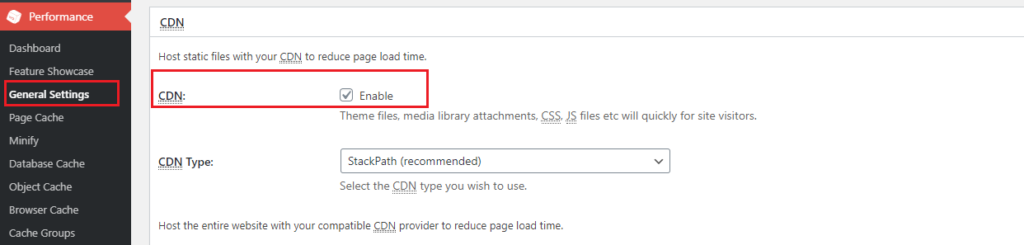
The notification you are seeing suggests that the CDN is not enabled in Performance>General settings:

So make sure that the CDN option is enabled and Stackath is selected under the CDN type, save all settings, and purge the cache.
Also, make sure to check this article about how to setup Stackpath with W3 Total Cache.
Thanks!- AuthorPosts